HTML
Configure the HTML file report of SpaceObServer.
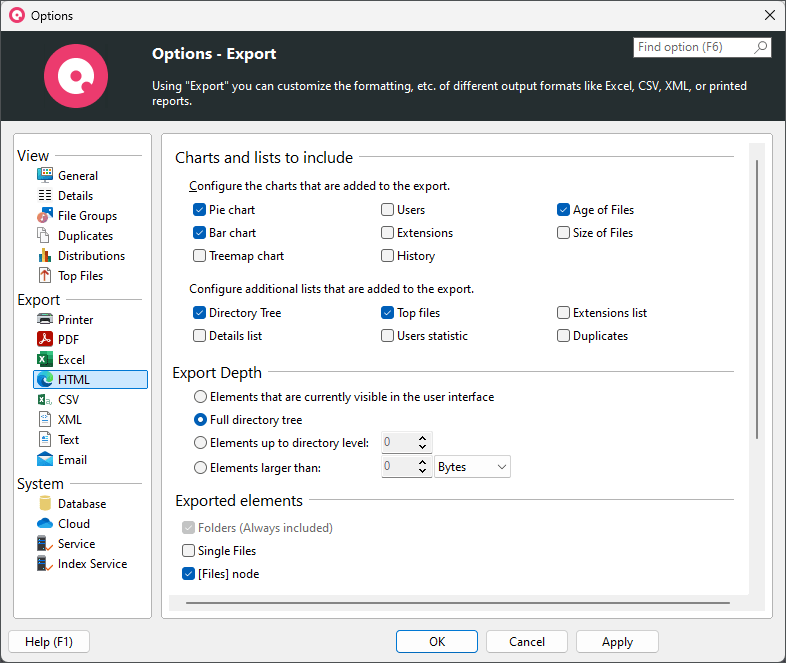
Charts and lists to include
Configure the charts and lists that are added to the HTML export Check all the different chart types and list types that shall be included in the report of this export type.
Export Depth
Elements that are currently visible in the user interface Only the expanded/visible parts of the Directory Tree will be exported.
Full directory tree If this option is selected, the complete Directory Tree will be exported.
Elements up to directory level Allows to restrict the amount of data that is exported to a certain level.
Elements larger than Only elements that have a certain minimum size will be exported.
Exported Elements
Folders only If this option is selected, only folders will be exported.
Folders and [Files] item If this option is selected, single files will not be exported. Instead, their values such as “Size” and “Allocated” will be aggregated into a special node “[Files]”.
Folders and single files If activated, single files will be exported. This may result in very large reports compared to exporting the files in a grouped view (see option above).
Exported Columns
Use same columns as in Details view Activate this option if you want to use the same columns that are currently used in the details view.
Use custom column settings Shows a column list to specify which information shall be included in this particular export. A list of all available columns with their descriptions can be found here.
Included information
Include summary information Use this option to specify whether a short summary information, such as the title and date of the report, should be added to the exported file.
Include units in export If this options is activated, units like “KB”, “MB”, or “%” will be included in the exported data. Uncheck this option, if you want to export plain values. If activated, use the drop down to configure the size unit that will be used for the export. You can either select a specific unit from Byte to Terabyte, let SpaceObServer automatically determine the optimal unit, or use the same unit that was last used in the user interface.
Style Sheet
Path th style sheet (optional) Define an optional style sheet which will be used to customize the created report.
Formatting
Use bold text and colors for reports too Turn this option on to apply the settings for bold folder names for printed reports.
Format file and folder paths as Chose in which way the paths of files and folders should be formatted in the export. Paths can be formatted either as plain text or as hyperlinks.